


The HP Smart Tank 5101 is a wireless all-in-one ink tank printer (print, scan, copy) for homes and small offices that print regularly and want a low cost per page. HP rates the ink bottles included in the box at up to 6,000 black and 6,000 color pages, far more than a standard cartridge. The trade-offs are modest speed (up to 12 pages per minute black and 5 color, ISO), a small icon display instead of a touchscreen, and no automatic document feeder.
In short: if you print schoolwork, invoices, labels and some color pages every week, the 5101 is strong value. If you need fast office printing, frequent multi-page scanning or you only print a few pages a month, another type of printer will suit you better. The sections below cover the specs, real-world use, running costs and setup in detail.
HP Smart Tank 5101 at a Glance
| Feature | HP Smart Tank 5101 |
|---|---|
| Type | All-in-one: print, scan, copy |
| Print technology | HP thermal inkjet, refillable ink tanks |
| Print speed (ISO) | Up to 12 ppm black, up to 5 ppm color |
| Print resolution | Up to 1200 x 1200 dpi black; up to 4800 x 1200 optimized dpi color |
| Scanner | Flatbed, no automatic document feeder |
| Paper handling | 100-sheet input tray, 30-sheet output tray |
| Media sizes | Letter, legal, A4, B5, A6, DL envelopes and more |
| Display | 1.2 inch icon LCD with backlit buttons |
| Connectivity | Dual-band Wi-Fi (2.4 and 5 GHz), USB 2.0, Apple AirPrint, Mopria |
| Included ink yield | Up to 6,000 black and 6,000 color pages (HP rating) |
| Dimensions | About 17.11 x 14.23 x 6.19 inches |
| Weight | Just over 11 pounds |
| Sustainability | ENERGY STAR certified; HP states about 45% recycled plastic |
| Security | HP Wolf Essential Security |
Specifications can vary slightly by region and retailer bundle, so check HP’s product page for the exact model number on the box you are buying.
Design and Build
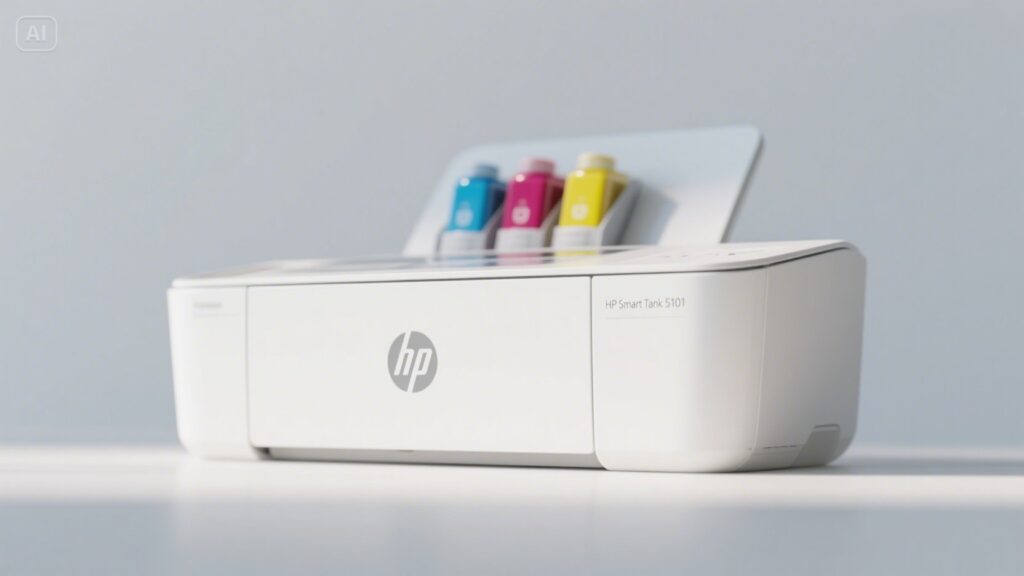
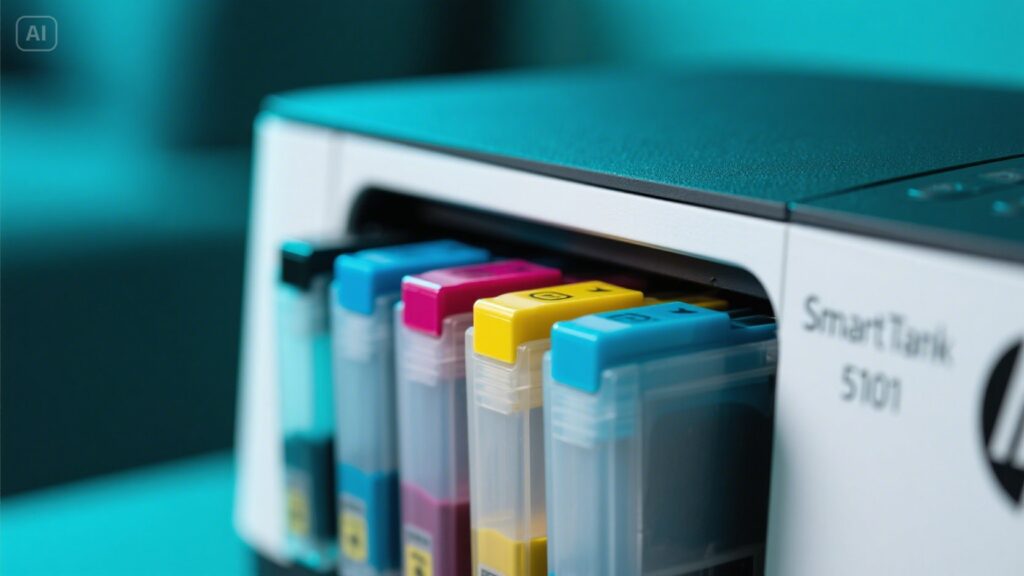
The 5101 is compact for a tank printer. At roughly 17 inches wide and just over 6 inches tall with the lid closed, it fits on a desk shelf or beside a monitor without dominating the space. The ink tanks sit at the front behind clear windows, so you can check ink levels at a glance without opening any software, which is one of the most practical design choices on the machine.
The control panel is deliberately simple: a small icon LCD shows Wi-Fi status, errors and copy count, and the buttons light up only when they are relevant. That keeps the front tidy but means most settings, from paper type defaults to sleep timers, live in the HP Smart app rather than on the printer itself.
Paper loads into a rear 100-sheet tray, and printed pages land in a 30-sheet output tray at the front. For a household printing a few dozen pages at a time that is fine. In a small office that prints larger batches, expect to empty the output tray more often than you would on a bigger machine. Leave a little clearance behind the printer so the rear tray can be loaded easily.
Print Speed and Quality in Practice
HP rates the 5101 at up to 12 pages per minute for black and up to 5 for color under the ISO test method. In real use the first page takes a little longer while the printer wakes up, and color pages with large filled areas print noticeably slower than plain text. Laser printers in a similar price range often print black text much faster, but they usually cost more per page for color, so the right choice depends on whether speed or color running costs matter more to you.
Text quality is sharp enough for reports, forms and school assignments. Color works well for charts, flyers, worksheets and craft printables. Photos on glossy photo paper look good for fridge, scrapbook and classroom use, and borderless printing is supported on certain paper sizes, though a dedicated photo printer produces smoother gradients and better skin tones. Selecting the correct paper type in the print dialog makes a visible difference, especially on photo paper.
Quick quality tips
- Use “Draft” or “Fast” mode for internal documents and drafts to save ink and time.
- Use “Best” only for photos and presentation pages.
- Choose “Grayscale” for text-only pages so the printer does not draw on color ink.
Ink System and Running Costs
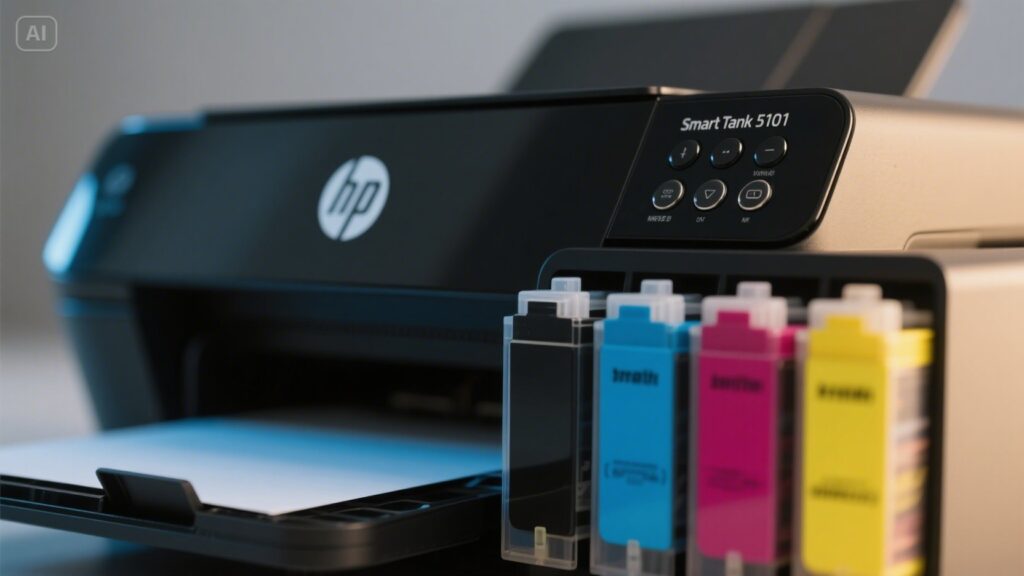
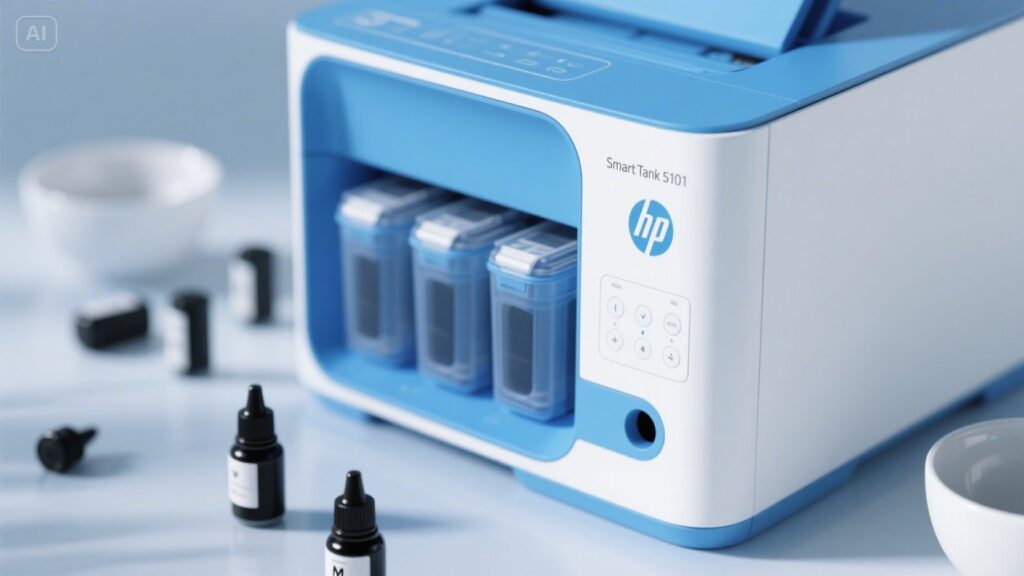
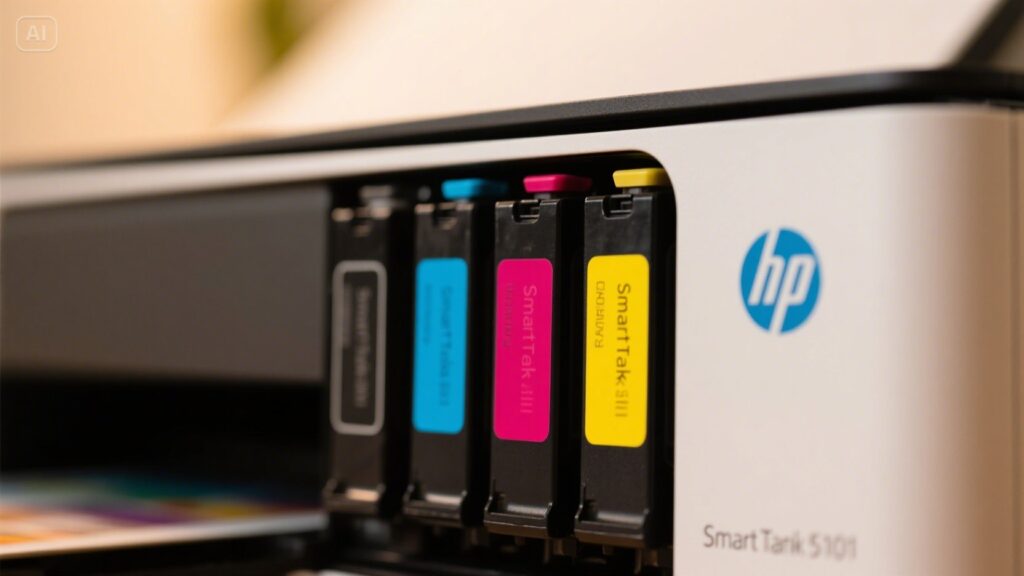
Running costs are where the 5101 earns its place. Instead of cartridges, it uses bottles you pour into the tanks. HP’s bottles are keyed so each color fits only its matching tank, and ink flows only when the bottle is seated properly, which keeps refills clean even for first-time tank printer owners. The printer ships with enough ink for up to 6,000 black and 6,000 color pages by HP’s estimate, which for many households covers a year or more of printing.
When you do refill, a bottle set costs a fraction of what the same page count would cost in cartridges. Actual cost per page depends on what you print: text-heavy pages use far less ink than full-page color graphics or photos. The saving is biggest for people who print regularly. If you print only a handful of pages a month, a cheaper cartridge printer may cost less overall, and any inkjet can suffer from dried nozzles if left unused for weeks.
Ink tank vs. cartridge printer
| Factor | Ink tank (Smart Tank 5101) | Typical cartridge inkjet |
|---|---|---|
| Upfront price | Higher | Lower |
| Ink included | Very high yield (up to 6,000 pages each, HP rating) | Starter cartridges, often low yield |
| Cost per page | Low | Higher, especially for color |
| Refill method | Pour bottles into tanks | Swap cartridges |
| Best for | Regular, moderate to heavy printing | Light, occasional printing |
Wireless Setup and the HP Smart App
Setup is guided through the HP Smart app on iOS, Android, Windows or macOS. The usual order is:
- Unpack the printer, remove all tape and packing material, and power it on.
- Fill each tank with the matching bottle, then install the printheads if your unit ships with them separately.
- Load plain paper and let the printer run its alignment page.
- Open HP Smart, add the printer and follow the prompts to join your Wi-Fi network.
- Install any firmware update the app offers.
- Print a test page from each device you plan to use, including phones.
Dual-band Wi-Fi means the printer can join either the 2.4 GHz or 5 GHz band, which helps in busy apartment buildings where the 2.4 GHz band is crowded. If the connection drops in a far corner of the house, a mesh system usually solves it; our look at the ASUS ZenWiFi BQ16 Pro explains how mesh coverage works. Apple AirPrint and Mopria let phones and laptops print without installing HP software, though the app is still needed for scanning shortcuts and some settings. HP Smart may ask you to create an HP account for certain features.
Common setup problems and fixes
- Printer not found during setup: keep the phone close to the printer, and make sure Bluetooth and location permissions are allowed for the app during setup.
- Wi-Fi keeps dropping: check the router is not far away through several walls, and install the latest firmware.
- Alignment page looks streaky: confirm the printheads are fully seated and the tanks have been filled before running alignment again.
- USB connection preferred: a USB 2.0 cable works for a single computer if Wi-Fi is unreliable.
Scanning and Copying
The flatbed scanner handles single pages, receipts, photos and book pages well. You can scan to your phone or computer through HP Smart, which can also build multi-page PDFs by scanning pages one at a time. There is no automatic document feeder, so copying or scanning a 20-page contract means lifting the lid 20 times. If that describes your regular work, HP’s higher Smart Tank models with a feeder are a better fit. Copies are started from the front buttons, with the small display showing the copy count.
For quick jobs, the HP Smart app’s phone-camera scanning can be handy when you are away from the printer, though flatbed scans remain sharper and flatter for documents you need to keep.
Security and Sustainability
HP Wolf Essential Security covers basics such as protecting the printer’s firmware and network connection, and firmware updates arrive through the app. For a home office handling client documents, that is a sensible baseline alongside a strong Wi-Fi password and keeping the printer on your private network rather than a guest network.
On the environmental side, the printer is ENERGY STAR certified, HP says the body contains around 45% recycled plastic, and bottles create less plastic waste than a steady stream of cartridges.
Pros and Cons
| Pros | Cons |
|---|---|
| Very high page yield from included ink | Slow color printing (up to 5 ppm) |
| Low cost per page for regular printing | No automatic document feeder |
| Clean, keyed ink bottles | Small icon display; most settings in the app |
| Dual-band Wi-Fi, AirPrint and Mopria | 30-sheet output tray fills quickly |
| Compact footprint | Higher upfront price than basic cartridge printers |
Who Should Buy the HP Smart Tank 5101?
- Families with students who print worksheets, projects and color handouts every week.
- Home-based workers printing invoices, shipping labels and contracts in moderate volumes.
- Crafters and teachers who want inexpensive color without worrying about every page.
It is less suited to offices that need fast high-volume output, frequent multi-page scanning or copying, or people who print only a few pages a month. If you are building a full home office setup, pairing it with a capable laptop such as the Dell Latitude 9510 and a sharp monitor like the Dell S2721Q covers most everyday work.
Checklist before you buy
- Do you print at least a few times a week? If yes, the ink savings add up.
- Do you scan multi-page documents often? If yes, look for a model with a feeder.
- Is color printing important? The 5101’s color is economical but slow.
- Will several people print from phones? AirPrint and Mopria support makes that easy.
Maintenance Tips to Get the Most From It
- Refill before a tank drops below the minimum line to avoid air in the ink lines.
- Use genuine or clearly compatible ink; mismatched ink can clog printheads and may affect warranty coverage.
- Print a page every week or two so the printhead nozzles do not dry out.
- Run the printhead cleaning tool from HP Smart only when you see streaks or gaps, since each cleaning uses ink.
- Keep the printer level when moving it, and never tip it on its side with ink in the tanks.
- Store spare ink bottles upright, sealed and away from heat and direct sunlight.
Bottom Line on the HP Smart Tank 5101
The HP Smart Tank 5101 makes the most sense for households and home offices that print steadily and want to stop buying cartridges. Its huge included ink supply, clean refills and easy wireless printing outweigh the slow color speed and lack of a document feeder for most of those users. If you print rarely or scan stacks of paper, choose a different class of printer instead.
Looking for something completely different? You might also enjoy our guide to Rottweiler Price.
Frequently Asked Questions
What type of printer is the HP Smart Tank 5101?
It is a wireless all-in-one inkjet printer that prints, scans and copies. It uses refillable ink tanks instead of cartridges, which lowers the cost per page for regular printing.
How many pages does the included ink print?
HP rates the ink in the box at up to 6,000 black and 6,000 color pages. Real results depend on how much of each page is covered, so photo-heavy printing will use ink faster.
Does the HP Smart Tank 5101 have an automatic document feeder?
No. It has a flatbed scanner only, so multi-page documents are scanned or copied one page at a time. Choose a higher Smart Tank model if you need a feeder.
Can I print from my phone with the HP Smart Tank 5101?
Yes. It supports the HP Smart app, Apple AirPrint and Mopria, so iPhones and Android phones can print over Wi-Fi without extra drivers.
How fast does the HP Smart Tank 5101 print?
It prints up to 12 pages per minute in black and up to 5 in color under the ISO standard. That suits home and light office use rather than high-volume printing.